
How to Make a Credit Card Payment
Make a Payment via Our Mobile App
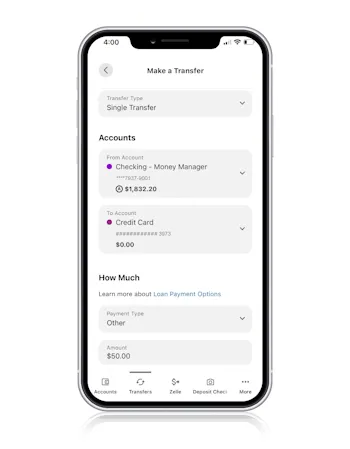
- Log in to online banking and tap on Move Money at the bottom of the screen.
- Tap Transfer.
-
Enter your payment information on the Transfers screen
- Under Transfer Type, select Single Transfer.
- Pick the account you'd like the payment funds to come from.
- In the To Account field, select the credit card you'd like to pay.
- Under Payment Type, you can select Current Balance, Last Statement Balance, Minimum Due, or Other.
- In the Frequency field, you can select to make a one-time payment or set up recurring payments.
- Choose the date you'd like your payment to be processed.
- If you'd like to add a note, you can enter it in the Memo field.
- Once completed, tap Review Transfer to ensure the information is correct.
- If the information is correct, tap Submit Transfer. Tap the back arrow if changes need to be made.
Make a Payment from Your Computer in Online Banking
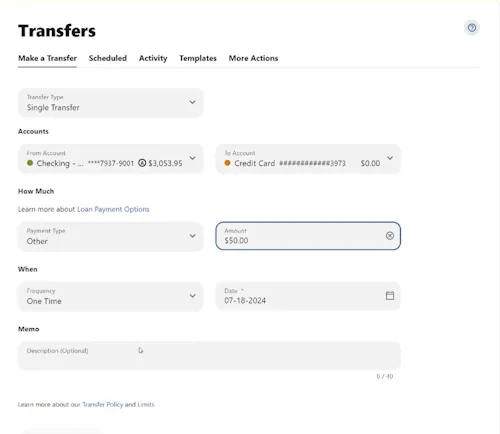
- Log in to online banking and hover over the Pay & Transfer tab at the top of the screen.
- Select Make a Transfer from the dropdown menu.
-
Enter your payment information on the Transfers screen.
- Under Transfer Type, select Single Transfer.
- Pick the account you'd like the payment funds to come from.
- In the To Account field, select the credit card you'd like to pay.
- Under Payment Type, you can select Current Balance, Last Statement Balance, Minimum Due, or Other.
- In the Frequency field, you can select to make a one-time payment or set up recurring payments.
- Choose the date you'd like your payment to be processed.
- If you'd like to add a note, you can enter it in the Memo field.
- Once completed, click Review Transfer to ensure the information is correct.
- Click Edit Transfer if changes are needed. If the information is correct, click Submit Transfer.
Make a Payment from Your Computer via the Card Management Tool
- Log in to online banking and hover over the Cards tab at the top of the screen.
- Click on Credit Card Account and then click the Launch button to open up the Credit Card Management tab in a new window.
- On the right-hand side of the screen, click the Make Payment button. You can also select to enroll in automatic payments.
- Agree to the terms and conditions and click Next.
-
Choose a payment account.
- Click Edit to set a default payment account.
- Click Add New Account.
- Click Yes.
- Enter the routing number and account number of the account from which you want to pay.
- Re-enter the account number.
- Click Save and Exit.
- Click Confirm. Please note it can take up to 5 days to verify the payment account.
- Select a payment date by clicking the calendar icon.
- Select the amount to pay. You can choose to pay the current balance, statement balance, minimum amount due, or other amount.
- Click Next to review the payment summary. If everything is correct, click Make Payment.